
PickTrack User Guide
Device setup, navigation, multiplayer, app connection, and stats tracking.
Guide Overview
Use this guide to set up your PickTrack, learn the device menus, understand each mode, and connect the mobile app for tracking and multiplayer.
Padlock Compatibility
Ensure your padlock's size and shackle match the requirements shown below before getting started.
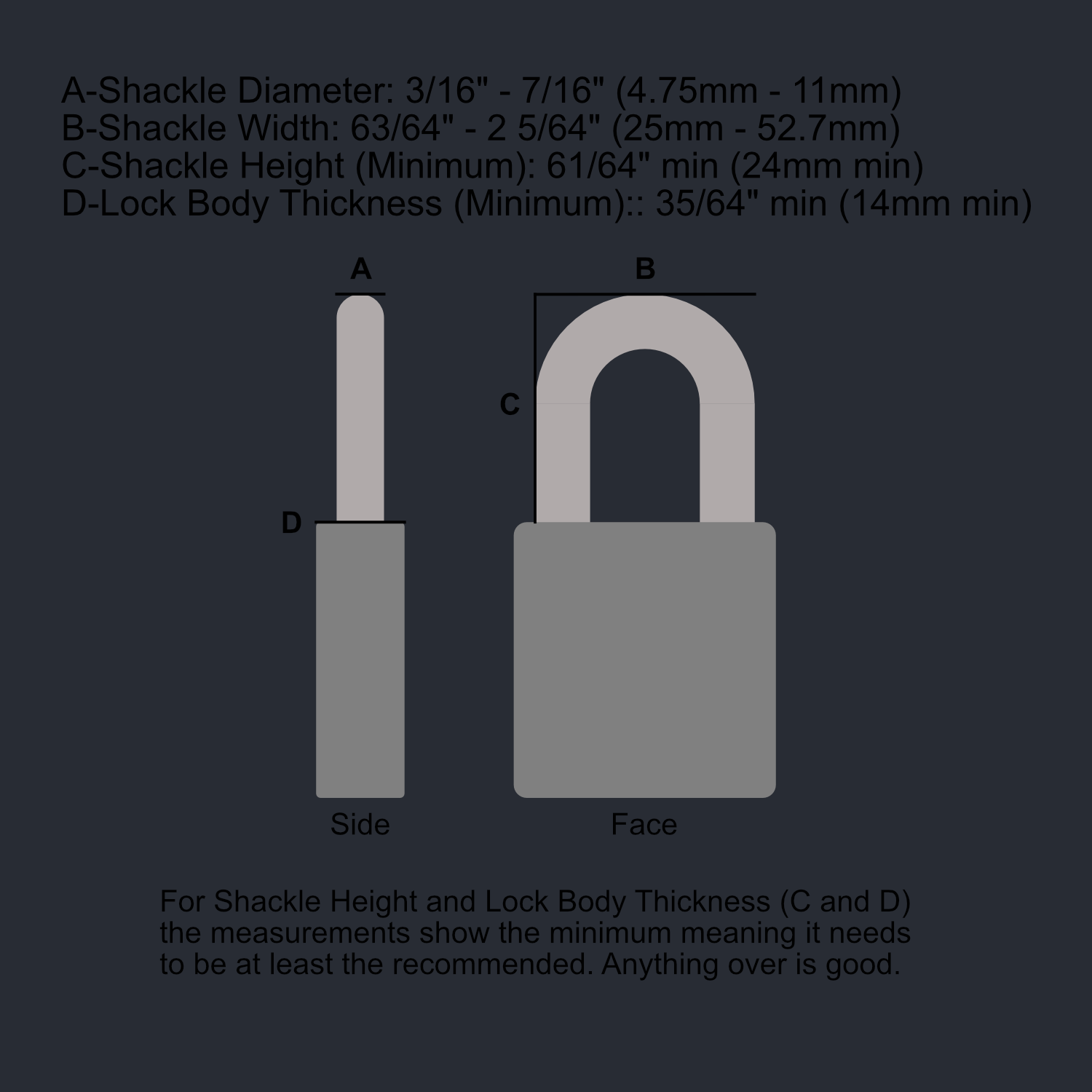
PickTrack Device User Guide
Before Getting a PickTrack
Lock Compatibility
Ensure your padlock's size and shackle follow the specifications shown above.
Certain Padlocks
If you're using a dead core padlock, be aware that there will be no spring to eject the shackle and stop the timing automatically. The shackle will need to be manually opened by you once the lock is picked. Additionally, ensure there is nothing that could obstruct the limit switch from making proper contact with the top of the lock body.
Power Requirements
The PickTrack device does NOT have a battery and will not include a wall adapter for power. A USB-A to USB-C cable is included, but you will need a USB-A wall adapter or a power source with USB-A output to power the device.
1. Introduction to the PickTrack
The PickTrack is a specialized device designed to track and time lock picking practice. It attaches to the shackle of a padlock and detects when the lock has been successfully picked when the shackle opens.
The device works through a limit switch on its bottom surface that makes contact with the top of the lock case when the shackle is closed. When you successfully pick the lock and the shackle opens, the switch is released, signaling completion to the device.
The PickTrack has a USB-C port to use for updating the device and to power it up. It has an RGB LED to use for visual cues. The OLED is a 128x32 pixel screen that is used to interface with the device.
2. Navigation Basics
The PickTrack features three buttons on the face of the device, arranged vertically:
- Up button (Top): Navigate upward through menu options.
- Select button (Middle): Choose the highlighted option with a short press or return to Main Menu with a long press for 2 seconds.
- Down button (Bottom): Navigate downward through menu options.
RGB LED Status Indicators
- Yellow: Countdown in progress.
- Red: Race or pick in progress.
- Green: Race or pick completed successfully.
- Blue: Bluetooth connected while in the Bluetooth menu.
- Blinking Blue: Bluetooth enabled but not connected while in the Bluetooth menu.
When you turn on the device, you'll see the main menu with four options:
- Timer
- Multiplayer LAN
- Multiplayer App
- Settings
Use the Up and Down buttons to navigate and the Select button to choose an option.
3. Timer Mode
Timer mode allows you to track your individual lock picking time, with options to save progress and load previous sessions.
3.1 Starting a Timer
- From the Main Menu, select Timer.
- Choose Start Timer.
- You'll see a screen that says Press Select to Start.
- Press Select to initiate the countdown.
- The device starts the countdown and the RGB LED turns yellow.
- After countdown, timing begins and the LED turns red.
- Begin picking the lock.
- When the lock opens, your final time is displayed and the LED turns green.
- Press Select to start another attempt.
3.2 Pausing and Saving
During an active timer, press Select to pause. The timer will stop and display two options: Resume or Save. The LED will flash red to indicate the paused state.
- Resume: Continues timing from where you left off after the countdown.
- Save: Store your time in one of three save slots and overwrite existing times.
3.3 Loading a Saved Time
- From the Timer menu, select Load Time.
- Select a slot that contains a saved time.
- Choose Load to resume from the saved point or Delete to remove the saved time.
- When you complete a loaded pick, the save is automatically deleted.
4. Multiplayer LAN Mode
Multiplayer LAN mode allows up to four PickTrack devices to connect directly to each other for local events without requiring a mobile app. One device serves as the host, creating a WiFi network that other devices can join.
4.1 Host Setup
- Select Multiplayer LAN and then Host.
- Enter a 3-digit code from 000 to 999.
- The device creates a Wi-Fi network named PickTrack-XXXX.
- The lobby screen displays your code and connected users.
4.2 Joining a Lobby
- Select Multiplayer LAN and then Join.
- Scan for available PickTrack networks.
- Select a network and enter the host's 3-digit code.
- Join the lobby if the code matches.
4.3 Lobby Management
The lobby shows all connected players with status indicators:
- Your username includes the (Y) suffix.
- The host username includes the * suffix.
- R means Ready and NR means Not Ready.
Host can kick players, all players can toggle ready status, and the race starts when all players are ready. Devices need to be in close proximity to ensure a reliable connection to the host.
5. Multiplayer App Mode
Multiplayer App mode connects your PickTrack to the mobile application via Bluetooth for enhanced multiplayer features and tracking.
5.1 Connecting to the App
- Ensure Bluetooth is enabled in Settings.
- Select Multiplayer App, which displays Connect in App.
- Open the PickTrack mobile app.
- Navigate to the Devices tab and connect to your PickTrack.
5.2 Mobile App Features
- Device Management: Connect via Bluetooth and modify settings.
- Race Management: Create or join races from 2 to 4 players using 6-character lobby codes.
- History Tracking: View pick history and sort by time, date, or lock name.
- Settings: Adjust LED brightness, Bluetooth, and username customization.
6. Settings
6.1 Bluetooth
Enable or disable Bluetooth functionality. The LED blinks blue when enabled but not connected, and stays solid blue when connected.
6.2 Username
Customize your 4-character username using A-Z and 0-9. The default username is generated from the device MAC address. Your username identifies your device in multiplayer modes.
6.3 Brightness
Adjust LED brightness from 0 to 10. Setting it to 0 turns the LED off completely.
6.4 Countdown
Adjust countdown length for Timer mode from 0 to 10 seconds. Setting it to 0 starts the timer immediately.
7. Tips and Shortcuts
- Quick Return: Long-press Select for 2 seconds to return to Main Menu.
- Auto-Delete: Loading and completing a saved time automatically deletes the save.
- Host Priority: Only the host can kick players or force-start a race.
- Connection Indicators: Look for the (Y) suffix for you, the * suffix for the host, and R/NR status for readiness.
- App Connection: Ensure Bluetooth is enabled before connecting in the app.
- Network Issues: Try refreshing the network scan and ensure devices are close.
PickTrack Mobile App User Guide
1. Getting Started
Download the PickTrack app from the Apple App Store for iOS or Google Play Store for Android. The app features three main sections:
- Home: Live pick time, history, and statistics.
- Multiplayer: Create or join races.
- Devices: Connect to and manage PickTrack device settings.
2. Device Connection
- Enable Bluetooth on your PickTrack device in the Settings menu.
- Navigate to the Devices tab in the app.
- The app automatically scans for nearby devices.
- Tap Connect next to your device.
- The device moves to the connected section when successful.
3. Device Settings Management
When connected, you can modify all device settings through the app:
- Bluetooth: Enable or disable it. Disabling it disconnects the device from the app.
- Username: 4-character username using A-Z and 0-9.
- Brightness: LED brightness from 0 to 10.
- Countdown: Timer countdown length from 0 to 10 seconds.
Tap Save Changes to apply settings or Cancel to revert.
4. History and Statistics
The app tracks picking statistics when connected to your device:
- History Tab: View all picks and sort by newest, fastest, or lock name.
- Statistics: Overview, trends, and lock-specific details.
- Lock Naming: Assign names to locks for better tracking.
- Data Analysis: Best times, averages, consistency, and improvement trends.
5. Multiplayer Racing
Compete with other PickTrack users online. This requires an internet connection.
Hosting a Race
- Tap Host Race.
- Select max players from 2 to 4.
- Share the 6-character lobby code.
- Start the race when all players are ready.
Joining a Race
- Tap Join Race.
- Enter the 6-character lobby code.
- Toggle your ready status.
- Wait for the host to begin.